This is the Pathfinder Sailing User Guide for the Plus Plan, offering integration with your sailing instruments. Click here for the User Guide for the Basic Plan that uses iPhone GPS and does not integrate with your instruments.
1. Getting Started
The Pathfinder app is available for download through the Apple App Store. The first 30 days are free.
- Download the app from the Apple App Store
- Create a Pathfinder account
- Select a subscription plan that will begin after the free trial ends. You can cancel any time during the free trial.
- Create or connect to a boat WiFi network
- Create your Boat Profile
Create a Pathfinder Account
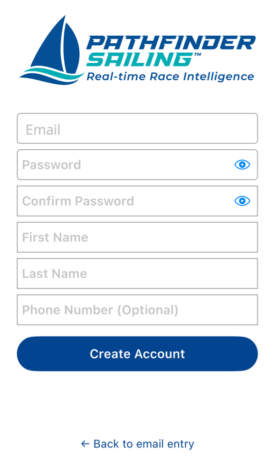
Once downloaded, you will be on the login page. Select “Create an Account” and enter your name and email address and click ‘Create Account.’ Once verified, you will be taken to a Subscription page where you will select a subscription to begin after the 30-day trial is complete. After selecting and confirming a plan, you will be forwarded to the Welcome page with links to Quickstarts and this User Guide.
2. Connecting to Your Instruments
You will need a WiFi access point or NMEA 0183 Gateway on your boat so the instruments and the Pathfinder app can communicate over WiFi. In the case of the B&G H5000, you probably already have a WiFi access point. If not, consider the recommended unit below.
Quickstarts
Video Quickstarts are available on the Quickstart Video page.
- H5000 Quickstart video
- NMEA 0183 Quickstart video
If you prefer written documentation, PDF Quickstarts are also available on the Quickstart PDF page.
Creating a WiFi Access Point/Wifi Network
If you need to set up a NMEA Gateway, we recommend the Actisense WGX-1-ISO NMEA 0183 Wireless Gateway. Click on the Actisense NMEA Gateway Set-up Guide, which includes a purchase link from the manufacturer and setup instructions.
If you need a WiFi Access Point, consider the GL.iNet Portable Wifi Travel Router and a simple 12V power supply.
3. Create Your Boat Profile
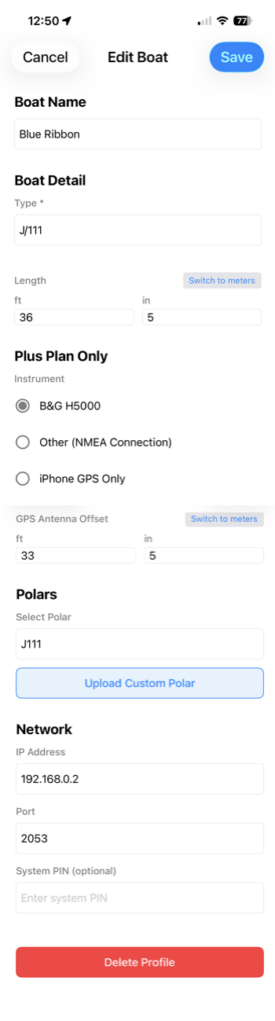
Before using the app on the water, you need to create a boat profile. From the app Home page, click on ‘Manage Boats’ at the bottom of the screen and click on ‘Add Boat’ to create a new boat profile.
- Select a boat name, boat type, and boat length
- Select your instrument manufacturer (B&G, Other (which will use an NMEA connection), or iPhone GPS if this boat has no instrument integration
- Enter your GPS Antenna offset measurement. What is GPS Antenna Offset?GPS Antenna Offset is the exact distance from the bow of the boat to the GPS antenna. This measurement is needed to provide accurate Distance Below Line while starting. You can also find this in your instrument display settings.
- Select a Polar if desired. You can either select from the standard library of polars or upload a custom polar.
- Click Save and return to the Active Boat page. Click Refresh. If you want this to be your Active Boat, click Select.
Refer to the Quickstart for more detailed instructions if needed.
4. Manage Boats
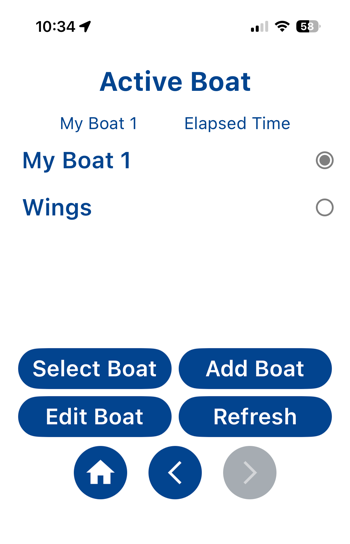
To manage your boat list, click on ‘Manage Boats’ from the app Home screen. This will take you to your boat list, where you can add a new boat profile or select a boat profile to edit,
- to add your boat, click on the ‘Add Boat’ button,
- enter your boat’s name
- select your instrument manufacturer and model
- add your boat length
- your GPS antenna offset
To make a boat your Active Boat, click on the ‘Select Boat ‘button on the Active Boat List.
5. Screen List
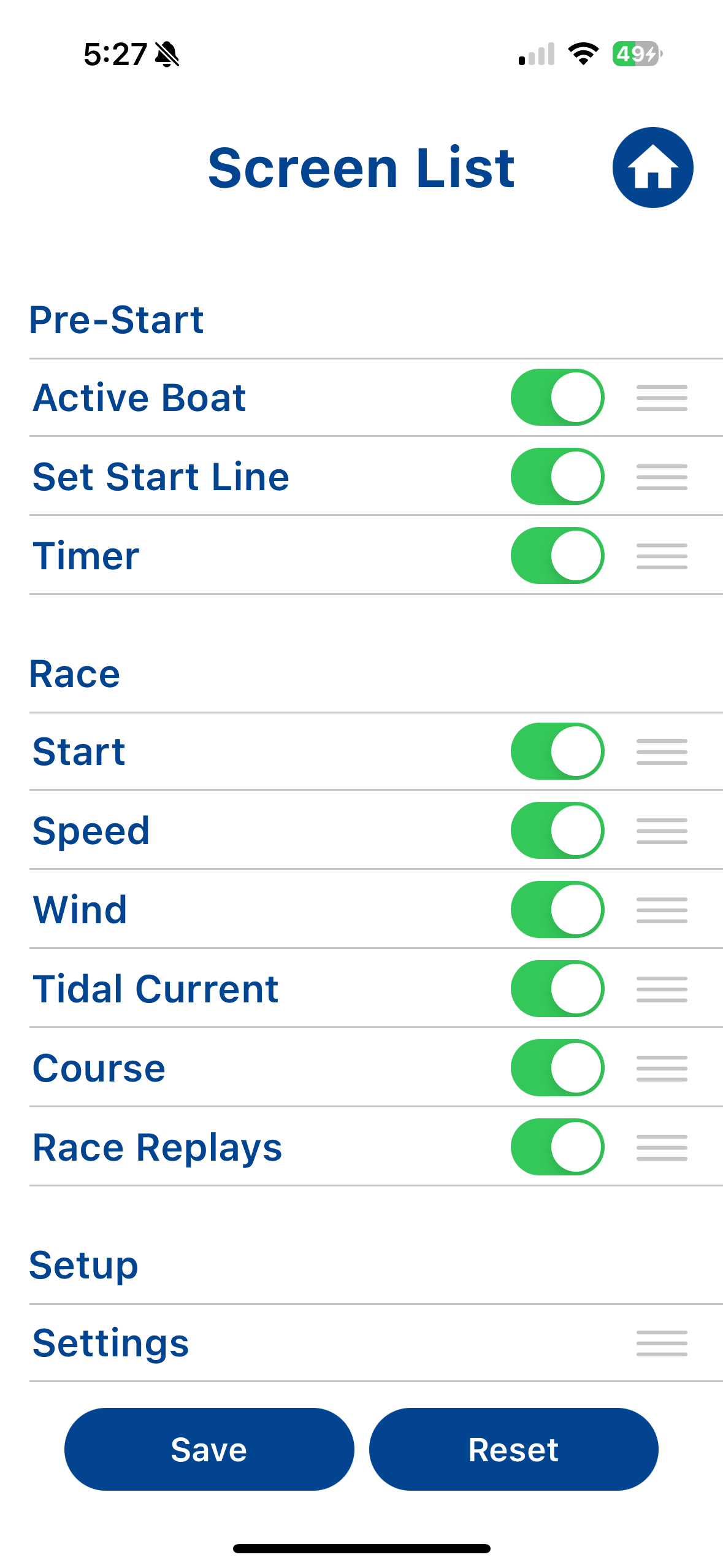
This page allows you to turn on and off app screens and change the order of the screens.
5. Settings
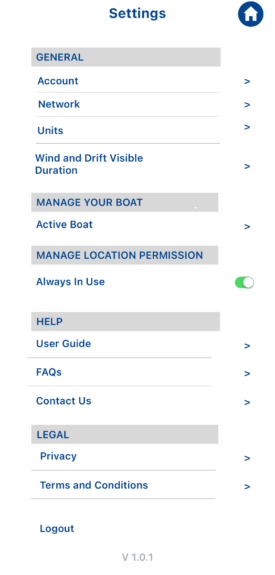
Most of these settings are self-explanatory. Some comments on those that require some explanation:
- Account confirms which Pathfinder account you are logged into.
- The Network page allows you to identify the Active Boat you will be sailing and to connect to the boat’s wifi. Click on the Edit button and enter the web server URL. It will usually be ws://192.168.8.0.2:2053. If it now, you will need to enter the correct URL. It is easy to find that on your instruments – click here to learn more.
- The Units settings allow you to switch preferences between boatlengths and meters, primarily for pre-starts.
- Wind and Drift Visible Duration. Select a time duration for the trend graphs for Wind and Tidal Current screens. Options include 10 minutes, 30 minutes, or 60 minutes of wind screen and current screen data.
- Manage Location Permission. If you select ‘Always in Use’, the app will collect GPS location data from the iPhone in addition to the GPS instrument data coming through the B&G instruments. This ensures location data is continuously collected even if the app is minimized. However, turning this on also decreases battery life significantly. You may want to switch this off if you are using the boat’s instrument GPS.
6. Set the Starting Line
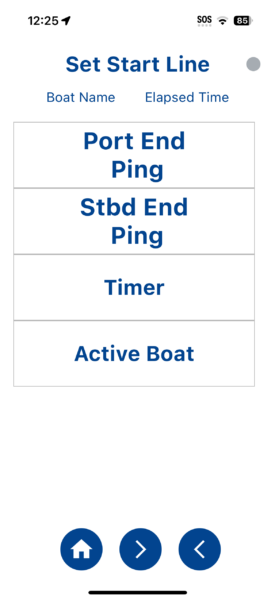
On the race course, once the race committee has set the starting line, you can ping the precise location of both ends of the starting line directly from your phone on the ‘Set Start Line’ screen.
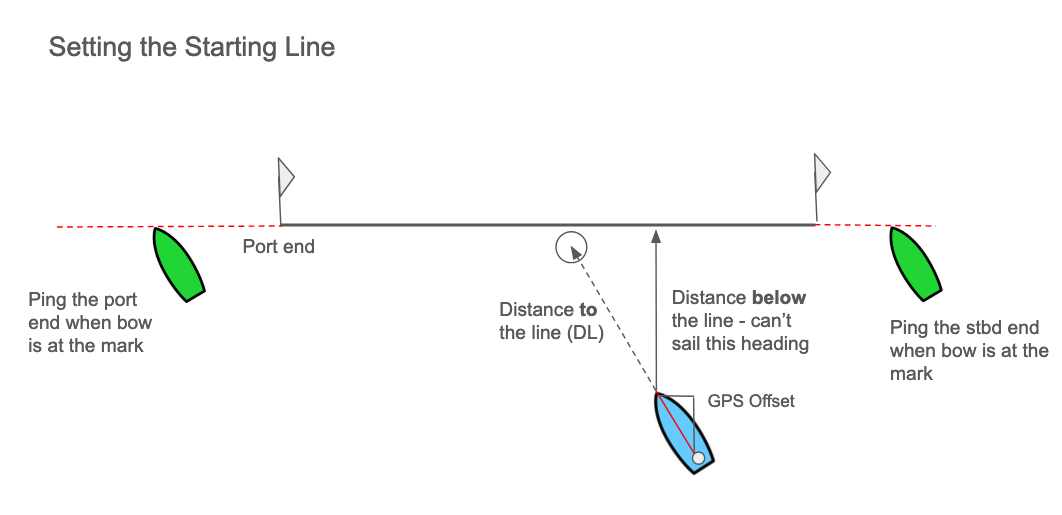
When using the Pathfinder Plus Plan with instrument integration, be sure you have an accurate GPS antenna offset measurement in your boat profile since you are using the boat’s GPS. For information on GPS antenna offset, click here (add content).
Ping Starting Line Ends
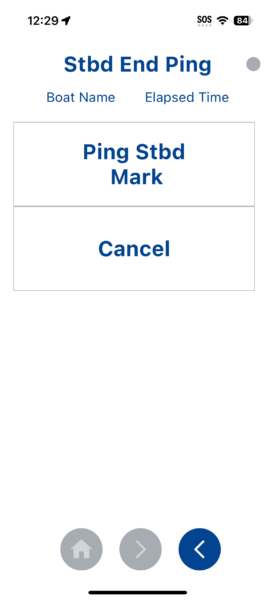
To ping either end, select the Port or Stbd End Ping screen, then press the ‘Ping Mark’ for the appropriate end of the line the moment the bow of the boat is even with the starting line. Once successfully pinged, you will see a green check mark next to the end of the ‘Set Start Line’ screen.
9. Race Timer Screen
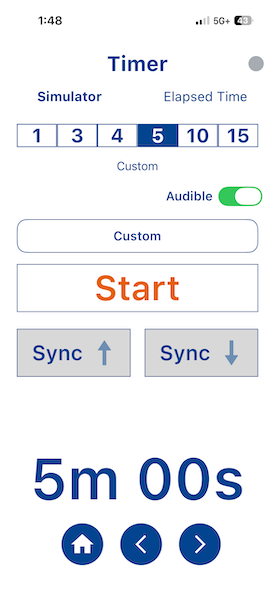
The Race Timer allows you to select your Timer Start point to synchronize with the Race Committee starting signals. Start by selecting the timer start point, for example 5 minutes, then click on the Start button when the race committee signal occurs. You can also use the custom timer to set a countdown of up to 59 minutes and 59 seconds.
Once you have started the start sequence and you are within 5 minutes or less of your start, the app will automatically begin logging of the race. You will see the red LED turn on in the top of your screen.
With the Sync buttons, you can sync down to the next minute by pressing the Sync down button or sync up to the last minute as needed.
The screen provides an audible switch option for the countdown.
Once the sequence has started, you can switch to the Start screen and still track your time to start.
10. Start and Stop Recording
Recording (logging) automatically stores your boat’s location data and performance data in the app’s database once per second. There are two ways you can start logging:
- Start the Timer. Whenever the race timer is at or below 5 minutes, logging begins automatically.
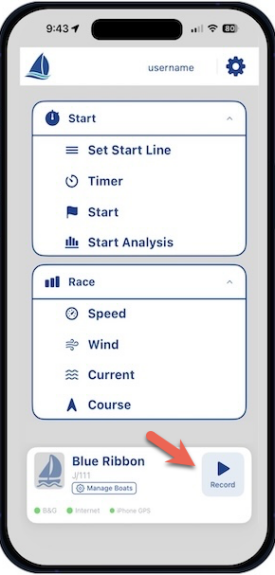
- Select the ‘Start Recording’ command on the Home page to start logging. The LED in the top right of your racing screens will turn red to indicate active logging is occurring, and the “Start Recording’ option switches to a red “Stop Recording” option.
- To stop recording, select the red ‘Stop Recording’ command. The red LED will turn gray to confirm you are no longer logging.
If you forget to stop recording on multiple race days, don’t worry. When you start your next race and the Timer is at 5 minutes or less, a new recording logfile will be started.
To stop recording, select the red ‘Stop Recording’ command. The red LED will turn gray to confirm you are no longer logging, and you will be prompted to either delete the recording or save it to your Race Replay list.
11. Start
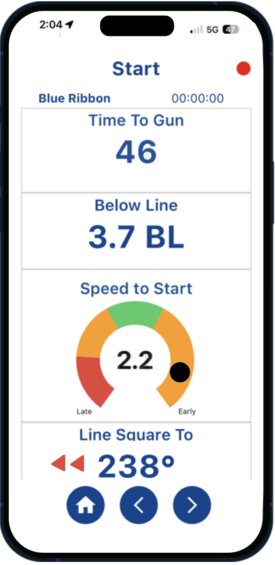
Once you have set your starting line and started the Race Timer, the Start screen will provide your Time to Gun, Distance to the Line, Line Square to, and Speed t- Start..
The Burnometer™ graphic provides your Speed to Start, which is the speed needed to arrive at the starting line at the moment the race starts.
- If you are early, the indicator will be in the orange or red (too early) zone, indicating your Speed to Start is very slow
- If your Speed to Start is close to 100% of your upwind target, the indicator will be in the green.
- If you are late, the indicator will show in that orange zone, indicating your Speed to Start exceeds your boat’s polar target, and you can’t go fast enough to be early across the line.
Using the feature will take practice, and success depends on several factors, including tidal current, congestion and wind shadows in your starting area. This graphic should be used as a rough guide only until you have some experience using it. This version of the Burnometer graphic does not take current into account.
12. Start Analysis
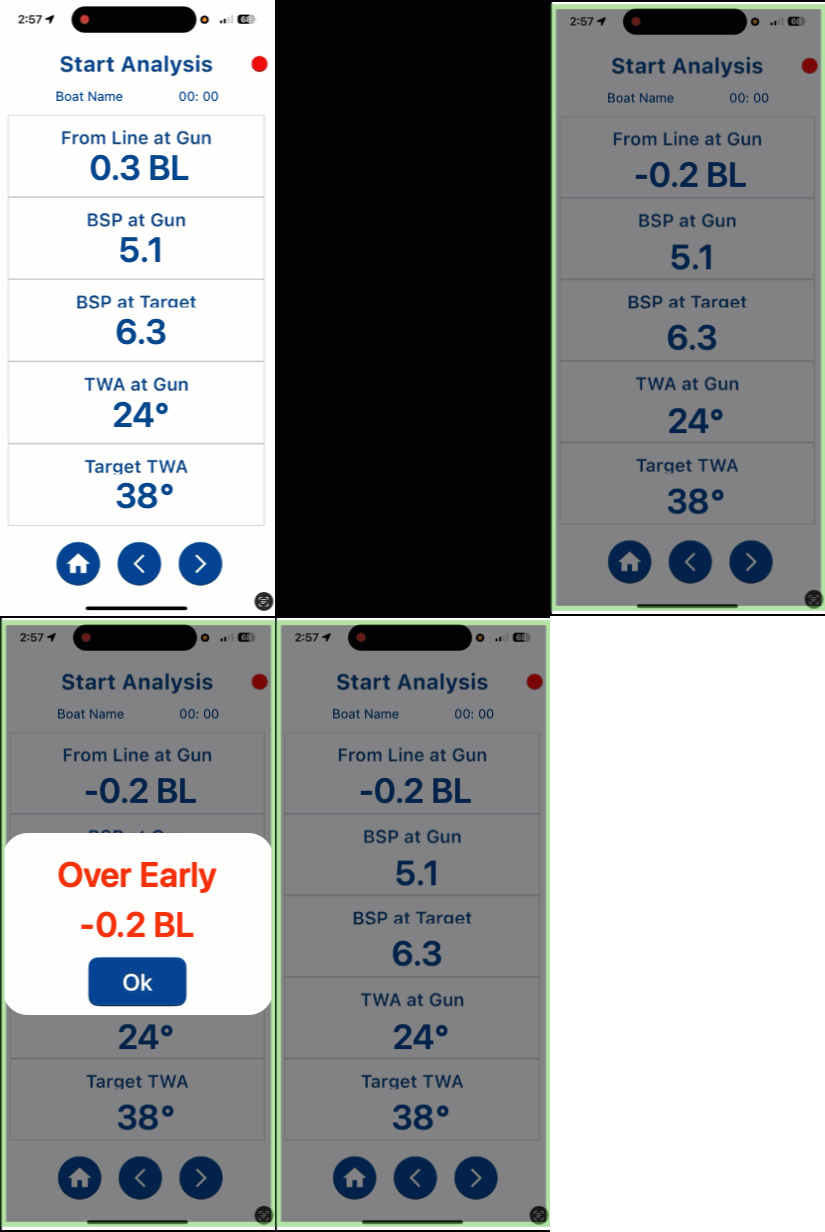
When the Race Timer reaches ‘0’ and the race starts, the Start Analysis screen reports your distance to the start line, boatspeed, and true wind angle at the moment the race started. The screen appears immediately after the timer reaches ‘0’ so you can see how well you started and whether you were over the starting prematurely.
Over-early starts show distance from line at gun as a negative number in red font.
12. Speed
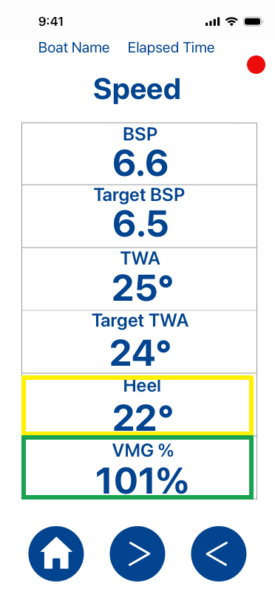
The Speed screen shows how the boat is performing against a standard polar or your custom polar, as selected in your Manage Boats > Active Boat profile. This ensures the boat is sailing at optimum speed, point, and heel angle for the conditions. The screen automatically switches between VMG % and Polar % depending on the True Wind Angle the boat is sailing on:
- VMG % is displayed when sailing upwind and downwind
- Polar % is displayed when the boat is reaching.
13. Wind screen
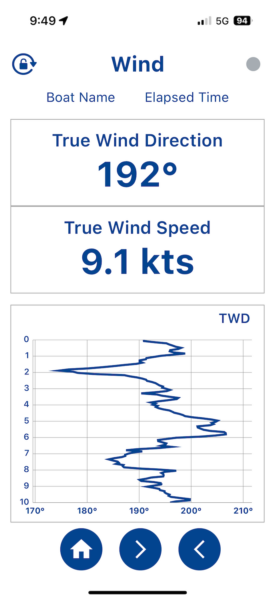
The Wind screen allows you clearly visualize wind oscillations and trends so you can more easily understand wind shifts. You can select different graph durations from the Setting screen: 12, 30, and 60 minutes.
14. Course
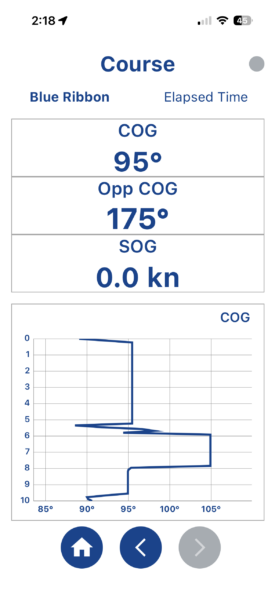
The Course screen shows your COG (Course over Ground) and SOG (Speed over Ground) using your iPhone’s GPS.
The trend graph shows your COG trend. By default, the time duration on the graph is set to 10 minutes. You can change the trend duration in Settings > Trend Duration to 10, 30, or 60 minutes.
Opp COG is the Opposite (Tack) Course Made Good. This is especially useful when tacking or jibing towards a mark. If your instruments calculate current set and drift, OppCOG will indicate your opposite tack course taking the current into account.
15. Tidal Current Screen
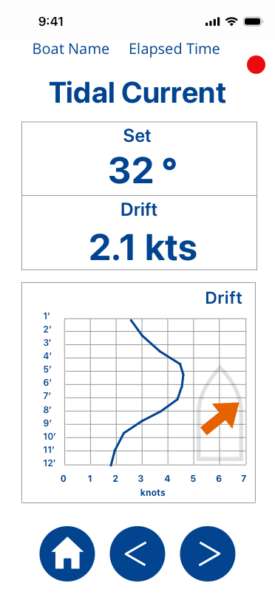
This screen is similar to the wind screen in providing a trend graph of your tidal current set. From this screen, you can easily understand if you are sailing into more current or less on a given leg of the course.
16. Apple Watch Companion App
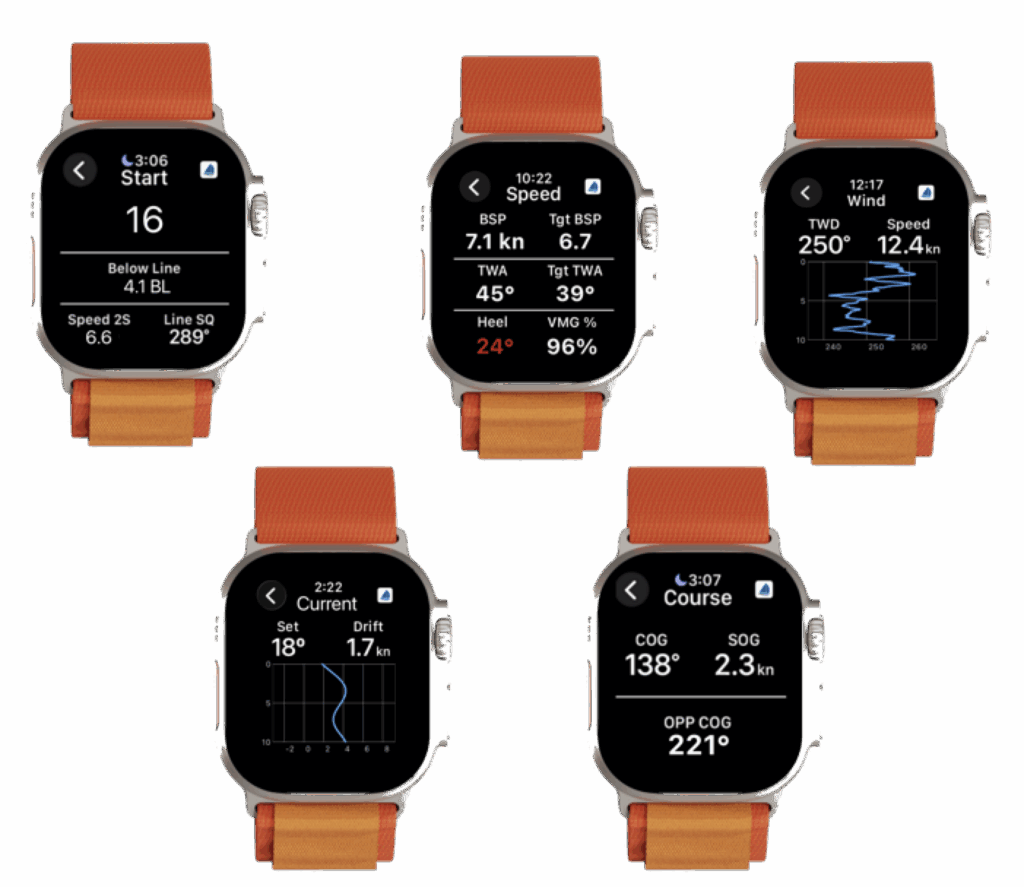
The Pathfinder Watch app is a companion to the Pathfinder mobile app and provides a real-time stream of information about the boat’s starting position, sailing performance, wind shifts, and tidal currents, via the boat’s instruments or the iPhone’s GPS. The watch connects to your iPhone app via Bluetooth.
Apple’s default watch settings can be modified to provide immediate access to and keep racing screens active while racing. For more information on this simple settings change, check out our blog post: Keeping Pathfinder Active on Your Apple Watch.
17. Race Replays
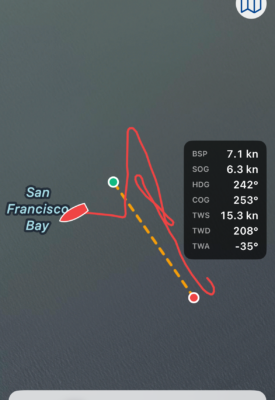
The Race Replay shows a list of your saved races. From the list you can select a race and replay it. The replay will generally begin at the 5-minute warning when race logging automatically starts.
If you have pinged your starting line ends, you will see the starting line on the replay screen.
18. Saving and Uploading Your Log Files to Pathfinder Sailing
If you are working with Pathfinder Services on sailing instrument calibration or custom polar development, you will want to save your race replay and then upload your log file to our cloud service.
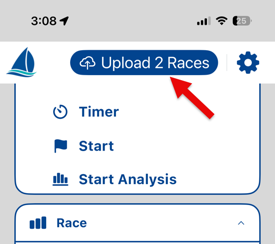
On the water, after recording and saving a Log File, an ‘Upload Log Files’ button will appear at the top of the Home Page. Click that sto end your log file to our Services team.