
This is the Pathfinder Sailing User Guide for the Basic Plan, which uses iPhone GPS and does not integrate with your instruments. Click here for the User Guide for the Plus Plan that integrates with your B&G H5000, Hercules, and Triton instruments.
1. Overview – Basic Plan
Pathfinder Sailing® for iPhone helps you sail smarter by providing better on-the-water decision support and post-race performance feedback. The Basic Plan app uses your iPhone GPS and stores the race data in a local database on your phone. Race-time screens use this data to provide the following:
- Race Timer
- Start screen with Distance to the Line and Speed-to-Start information
- Start Analysis screen with real-time Distance Below Line and Immediate Over-Early Notification
- Course screen with Speed over Ground (SOG), Course over Ground (COG), and COG Trend
After the race, the app can sync to the Pathfinder web app and provide post-race replay and performance analysis. From the web app, you can replay your logged races and compare yourself to other opted-in boats in your fleet that use Pathfinder.
2. Getting Started and Quickstart
The Pathfinder app is available for download through the Apple App Store with a free 30-day trial.
To get started, view the Basic Plan Quickstart. The Quickstart will outline each step to:
- Download the app from the Apple App Store
- Create a Pathfinder Sailing Account
- Choose a plan that will bill your credit card after the free 30-day trial
- Create a boat profile and manage your boats
- Set up the app on your Apple Watch
3. Create a Boat Profile & Manage Boats
Before using the app on the water, you should create a boat profile for the boat you will be sailing on.
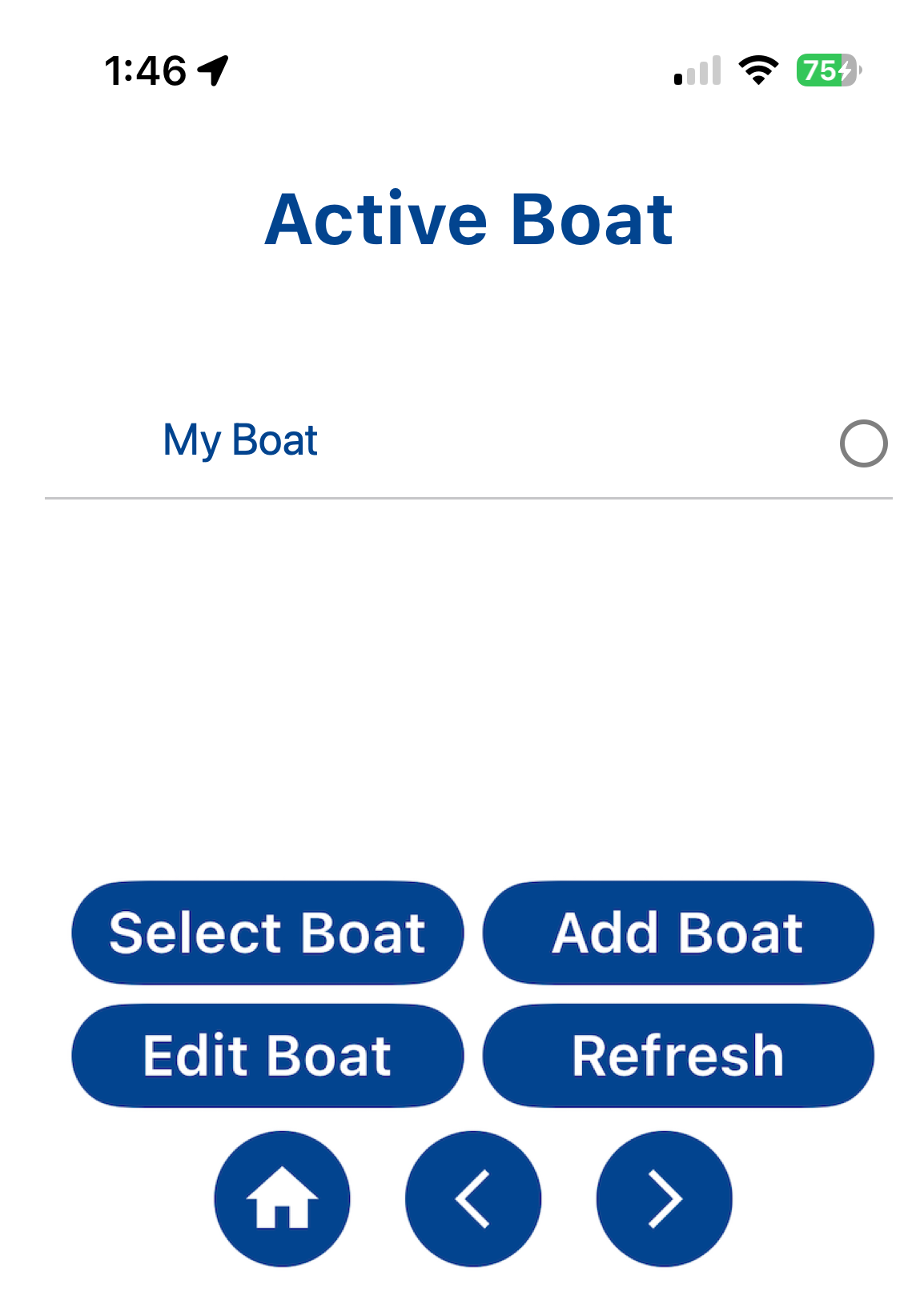
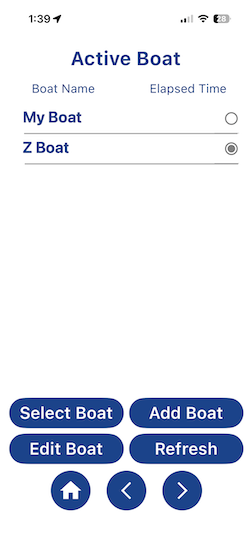
To create a boat profile, select ‘Active Boat’ from the Home screen. The Active Boat screen will show profiles for the boats you sail on. The default ‘My Boat’ profile will work for you without modifications if you want to use that, but a profile with your boat name makes it easier to keep track of your race replays and improves your multiple boat replays.
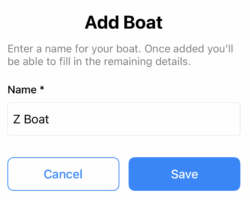
To create a boat profile, select the “Add Boat” button, enter the boat name and click ‘Save’.
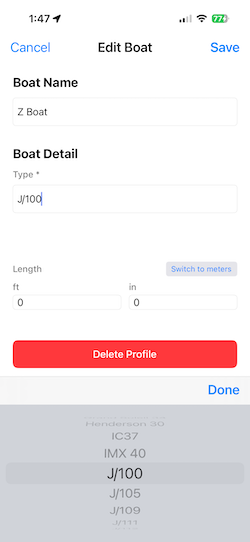
You will advance to the Edit Boat screen.
From here, select your boat type (EG: One-Design class or Custom) and enter your boat length. Click ‘Save’.
Back on the Active Boat page, click ‘Refresh’ and then ‘Select Boat’ to make this your default boat.
4. Set Active Boat
Back on the Active Boat screen, click ‘Refresh’ and then select the boat you will be sailing on. The boat list is populated by boats you have added to your profile.
If you want to add or delete a boat, you can do so by selecting ‘Add Boat’ or ‘Edit Boat’ and then deleting it from the profile page.
5. Display Settings
You may want to change your display settings when using the app to ensure the app continues to run and log your race data without going into sleep mode. Go to Settings > Display and Brightness settings and change your Auto-lock setting to ‘Never.’
6. Set the Starting Line
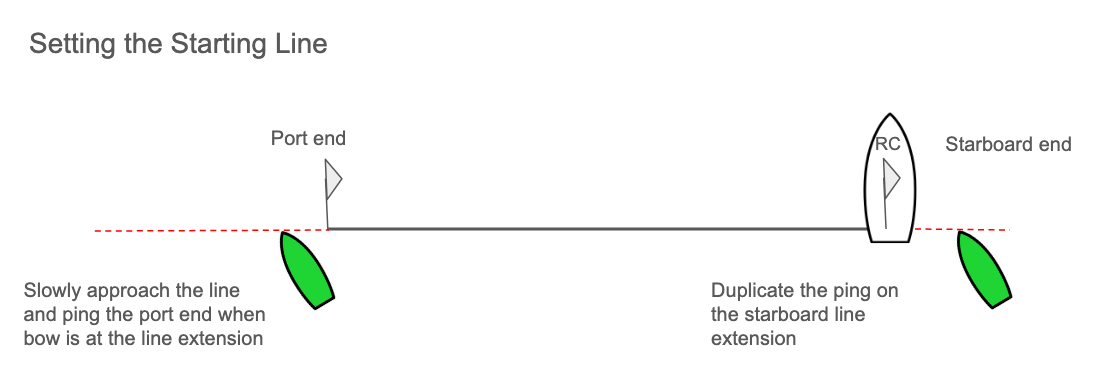
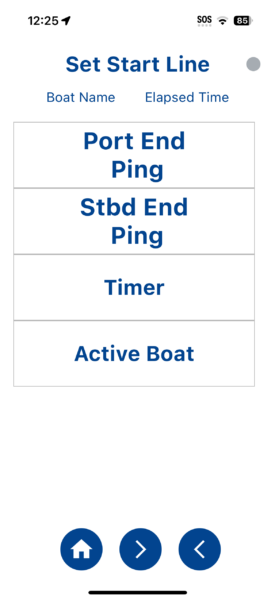
On the race course, once the race committee has set the starting line, you can ping the precise location of both ends of the starting line directly from your phone on the ‘Set Start Line’ screens.
Ping Starting Line Ends
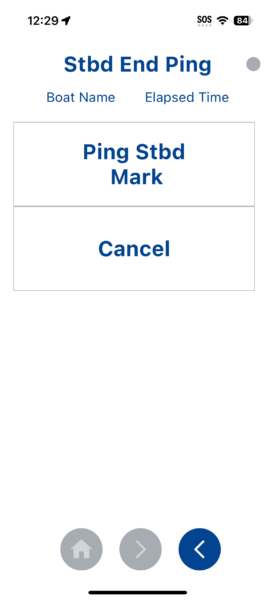
To ping either end, select the Port or Stbd End Ping screen, then press the ‘Ping Mark’ for the appropriate end of the line the moment the bow of the boat is even with the starting line. Once successfully pinged, you will see a green check mark next to the end of the ‘Set Start Line’ screen.
7. Race Timer Screen
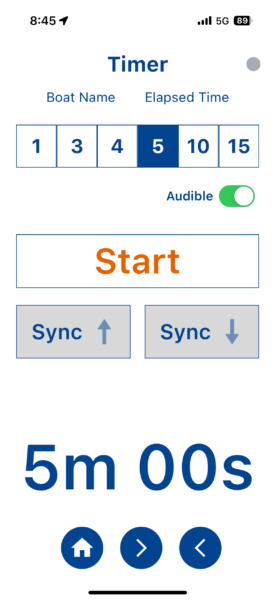
The Race Timer allows you to select your Timer Start point to synchronize with Race Committee starting signals. Start by selecting the timer start point, for example 5 minutes, then click on the Start button when the race committee signal occurs. Once you have started the start sequence and you are within 5 minutes or less of your start, the app will automatically begin logging of the race. You will see the red LED turn on in the top of your screen.
With the Sync buttons, you can sync down to the next minute by pressing the Sync down button or sync up to the last minute as needed.
The screen provides an audible switch option if you want the audible countdown.
Once the sequence has started, you can switch to the Start screen and still track your time to start.
8. Start and Stop Logging
Logging automatically stores your boat’s location data and performance data in the app’s database once per second. There are two ways you can start logging:
- Start the Timer. Whenever a race timer is at 5 minutes or less, logging begins automatically.
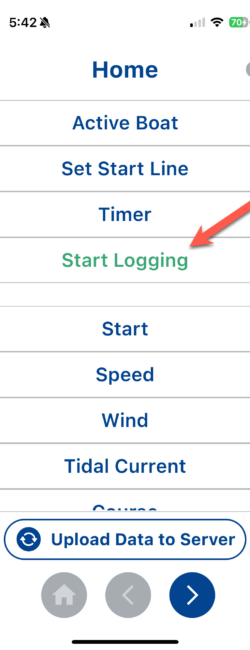
- Select the ‘Start Logging’ command on the Home page to start logging. The LED in the top right of your racing screens will turn red to indicate active logging is occurring, and the “Start Logging’ option switches to a red “Stop Logging” option.
- To stop logging, select the red ‘Stop Logging’ command. The red LED will turn gray to confirm you are no longer logging.
If you forget to stop logging on multiple race days, don’t worry. When you start your next race, and the Timer is at 5 minutes or less, a new logging file will be started.
9. Start Screen
Once you have set your starting line and started the Race Timer, the Start screen will provide your Time to Gun, Distance Below the Line, and Line Square To.
The Speed to Start is the speed you need to go to get to the line at the starting gun.
- If you are early, you will see your Speed to Start number getting smaller
- If your Speed to Start is getting larger, you may be late
- If you are really late, your Speed to Start will exceed your potential boatspeed, and you won’t be able to go fast enough to start on time. The trick is to time the increasing Speed to Start value with your Target BSP so you are at your full target speed as you cross the starting line.
‘Line Square to’ displays the true wind direction the line is set for so you can more easily determine which end of the line is favored.
Effective use of this screen at race time will take practice, and success depends on several factors, including tidal current, congestion, and any wind shadows in your starting area.

10. Start Analysis
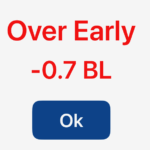
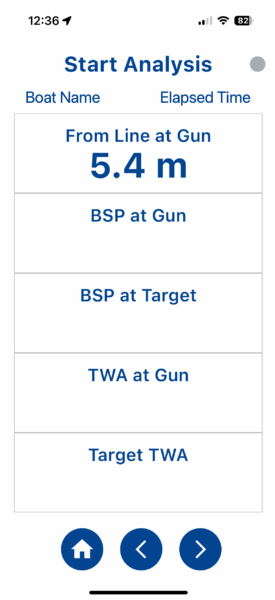
When the Race Timer reaches ‘0’ and the race starts, the Start Analysis screen reports your distance from the start line at the moment the race started. The screen appears immediately after the timer reaches ‘0’, so you can see how well you started and whether you were over the starting line prematurely. Over-early starts show distance from the line at the gun as a negative number in red font, and a notification message will appear.
11. Course screen
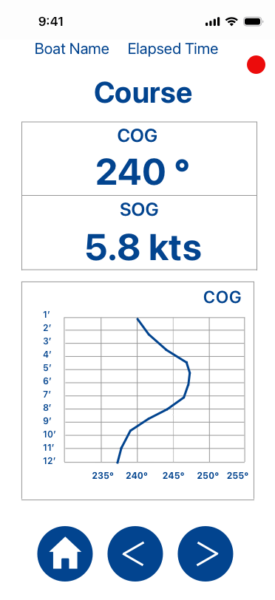
The Course screen shows your COG (Course over Ground) and SOG (Speed over Ground) using your iPhone’s GPS The trend graph shows your COG trend. By default, the time duration is set to 10 minutes. You can change the trend duration in Settings > Trend Duration to 10, 30, or 60 minutes.
12. Apple Watch App
The app is a companion app to the Pathfinder mobile app and includes the Start and Course screens in this Basic Plan. The watch connects to your iPhone app via Bluetooth.

14. Syncing the Mobile App – Upload Data to Server
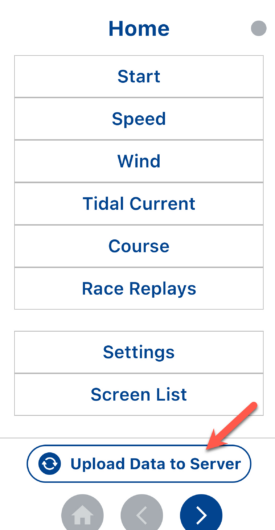
After racing, you should upload your race data to the Pathfinder Sailing cloud database from the Home screen. The race log is then cleared from your phone. Once synced, you are able to access your race replays from any browser by going to the web portat at my.pathfindersailing.com and logging in.
The Upload Data to Server button is deactivated while logging is turned on, so you will need to stop logging prior to syncing.
15. Settings
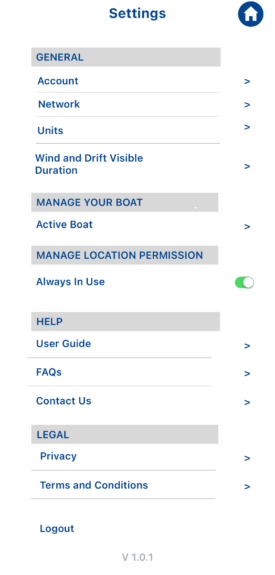
Most of these settings are self-explanatory. Some comments on those that require some explanation:
- Account confirms which Pathfinder account you are logged into.
- The Network page allows you to identify the Active Boat you will be sailing and to connect to the boat’s wifi. Click on the Edit button and enter the web server URL. It will usually be ws://192.168.8.0.2:2053. If it now, you will need to enter the correct URL. It is easy to find that on your instruments – click here to learn more.
- The Units settings allow you to switch preferences between boatlengths and meters, primarily for pre-starts.
- Wind and Drift Visible Duration. Select a time duration for the trend graphs for Wind and Tidal Current screens. Options include 10 minutes, 30 minutes, or 60 minutes of wind screen and current screen data.
- Manage Location Permission. If you select ‘Always in Use’, the app will collect GPS location data from the iPhone in addition to the GPS instrument data coming through the B&G instruments. This ensures location data is continuously collected even if the app is minimized. However, turning this on also decreases battery life significantly. You may want to switch this off if you are using the boat’s instrument GPS.
16. Screen List
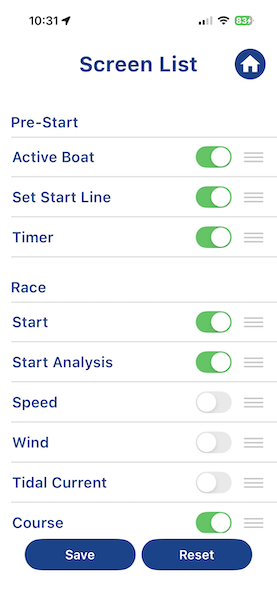
This page lets you turn app screens on and off and change their order.
By default, the Speed, Wind, and Current screens are disabled because they require connected instruments to populate data.
17. Race Replays
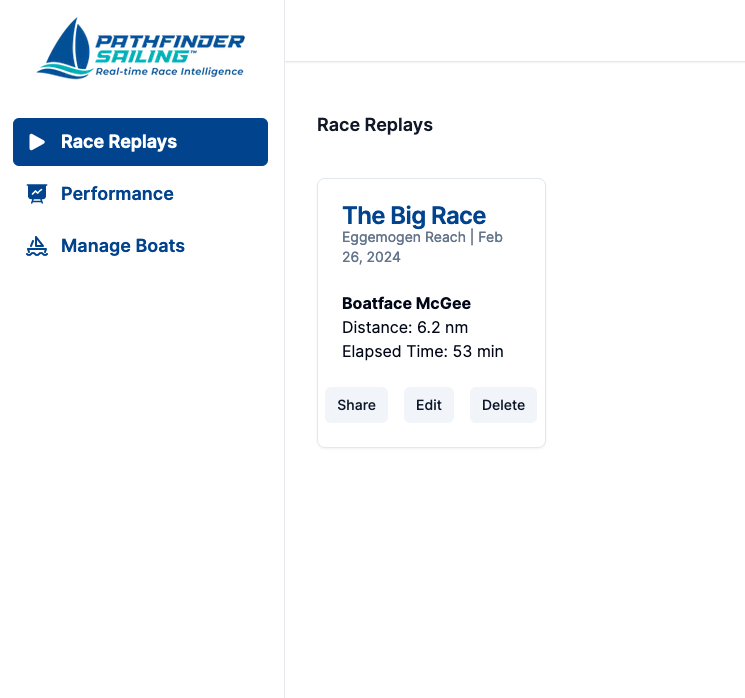
To access replays of your logged races for your boat, go the the My Pathfinder web app and click on Race replays. Each replay is given the title of ‘Unknown’ by default. Click on the pencil icon next to the title to create a new descriptive name.